Accessible PDFs: The Hidden Accessibility Gap on Your Website
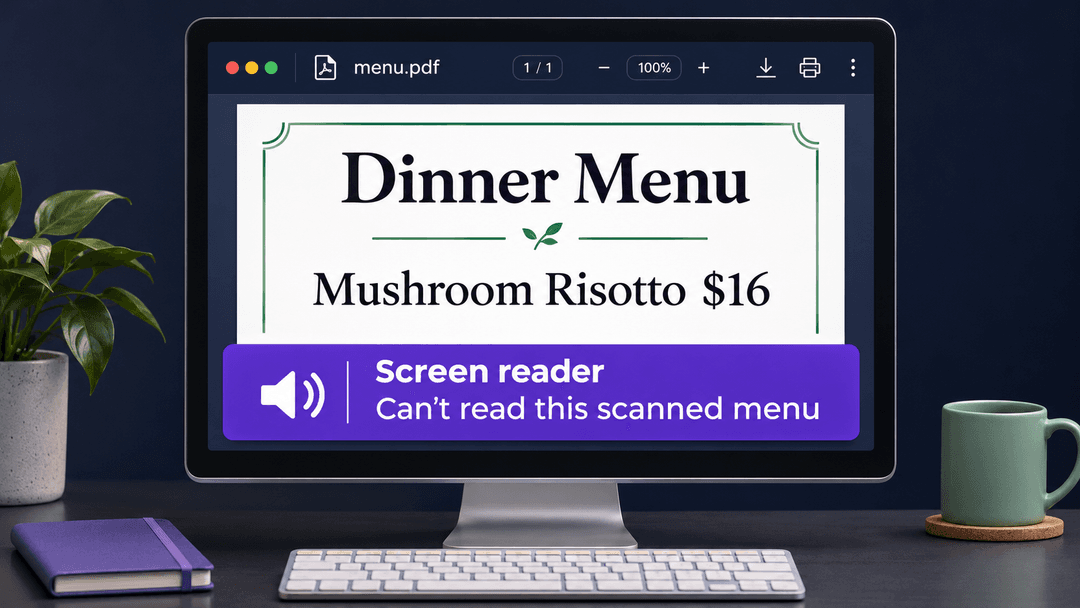
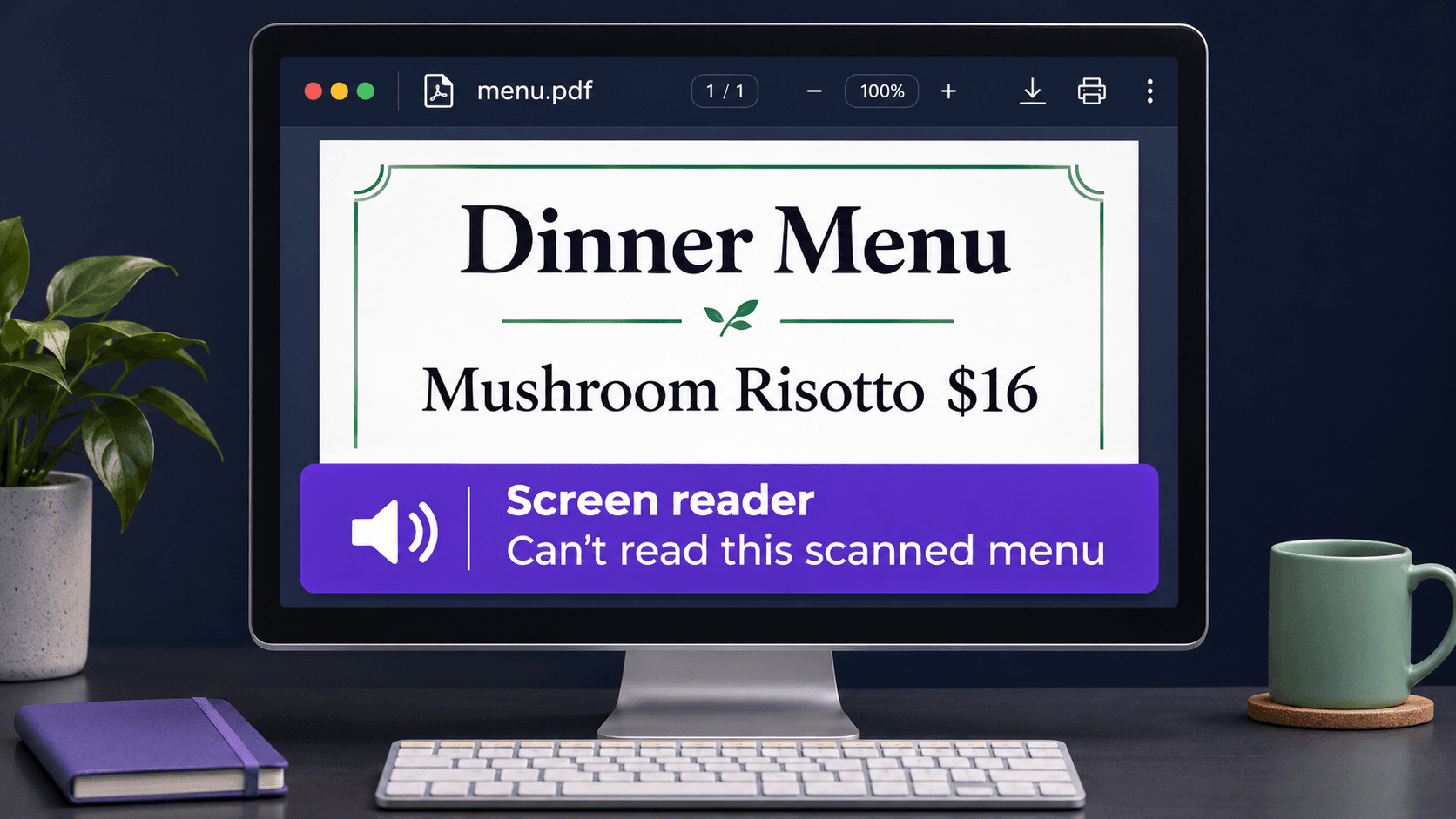
A customer with low vision is choosing a restaurant for dinner. They want to know whether there’s a vegetarian main and how much it costs. On your website, their screen reader, the software people with low or no vision use to read text aloud, takes them straight to the menu link. They open the PDF. Two pages, no dishes, no prices they can hear. The scanned menu looks just like the one you hand to diners.
If you’ve tested the link yourself, you may remember checking that it opened the right menu. There’s one more question to ask: Could someone use that file to decide what to order?
We’ll use the restaurant menu as a running example, but you can ask the same question about a catalog, a price list, a set of instructions, or a form: can a customer use the PDF to do what they came to your site for?
Try reading the menu without its layout
Open one of your PDFs and try to select some of the words. If you can't do that, as the whole page behaves like a photograph, you may be looking at a scan. If you can, go back to the original document. If not, OCR software can read the words from the scanned image for you. Check the result against the original, especially where a digit matters. You’d want to catch a $16 lunch listed as $76.
But text being selectable doesn’t make a PDF accessible. Picture a menu with sandwiches on the left and drinks on the right. If the reading order runs across both columns, a customer might hear “roast beef, fresh lemonade, mustard on rye.” OCR can recognize every word and still leave that problem in place. Someone has to check the structure and confirm that each sandwich stays with its description and price.
What to ask whoever prepares your PDFs
Start with how a reader finds a section. PDFs use structural tags, labels inside the file that identify headings, paragraphs, lists, and tables. If “Vegetarian Mains" is tagged as a heading, a screen reader user can jump to it. Printing those words in large green letters gives a sighted reader a cue, but the appearance alone doesn’t give someone the same shortcut.
Then look at what the pictures tell you. Say a leaf beside a dish is the menu’s only indication that it’s vegetarian. A useful image description says “vegetarian,” because that’s what the diner needs to know. A decorative vine around the page can be marked so the screen reader skips it.
Suppose the restaurant also takes catering orders. Its PDF price list shows what each dish costs per person and per tray. Ask whoever prepares the file to check that each price is linked to the right column heading, so a customer using a screen reader can tell what the price covers. If the PDF includes an order form, try moving through it with the keyboard. When you reach the quantity field, does the screen reader tell you what to enter?
Decide which files deserve attention first
At the restaurant, start with the dinner menu. Every diner who opens it has a question the file should help them answer. It’s also worth asking whether diners need to download it at all. Putting the menu on a regular web page lets someone check tonight’s vegetarian options as soon as they reach your site. If you keep a printable PDF too, put the same person in charge of updating prices in both places.
To choose the first PDF to review on your own website, ask your staff which files customers rely on and what happens when they can’t read one. If you sell supplies, that might be the catalog customers use to place an order. If you sell equipment, start with the instructions a buyer needs before they can use it safely, even if that file gets few downloads.
Before you publish a PDF
Open the finished PDF and choose something a customer would use it for. With the dinner menu, try finding the vegetarian main and its price. For your own file, work through the questions below with your customer’s task in mind.
- Can I select the text, and has someone checked any text recovered from a scan?
- Can a screen reader user jump to the headings and follow the content in a logical order?
- Can someone understand the images and match table entries to the right headers without seeing the page?
- If there’s a form, can someone identify and fill in each field using a screen reader and keyboard?
- Has anyone tried the customer’s task in the finished PDF?
An automated accessibility checker can flag a missing image description. A file can pass that check even if the description says only “leaf.” Someone familiar with the menu needs to notice that the diner still has no way to identify a vegetarian dish. A passing result alone cannot establish full accessibility.
Include important downloadable documents in your next website accessibility review. Start with one that customers rely on and give the reviewer a real question to answer. For the dinner menu, “What’s the vegetarian main, and what does it cost?” is a better test than “Does the link open?”